Job Sites/Venue
You can access Job Site/Venue from either inside the contract, under the Delivery Tab or through File Maintenance.
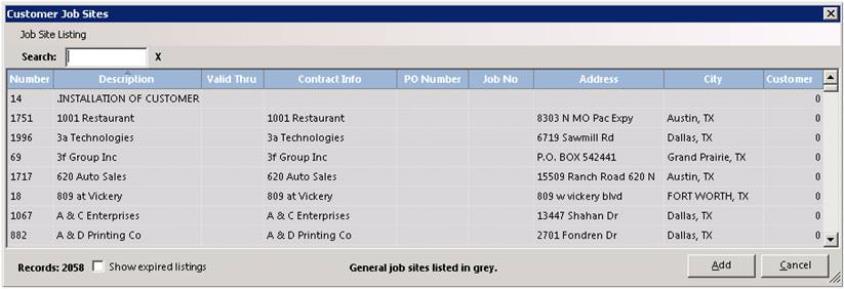
If you have the Party Rate selected as your default overtime rate in Parameters, then this feature will be labeled as Venue; otherwise, this feature will be labeled as a Job Site. This option allows you to add or modify Job Sites for this customer. Any General Job Site will be displayed with a grey background. The Job Site selection screen will look like the following:
From File Maintenance:
Contract Info
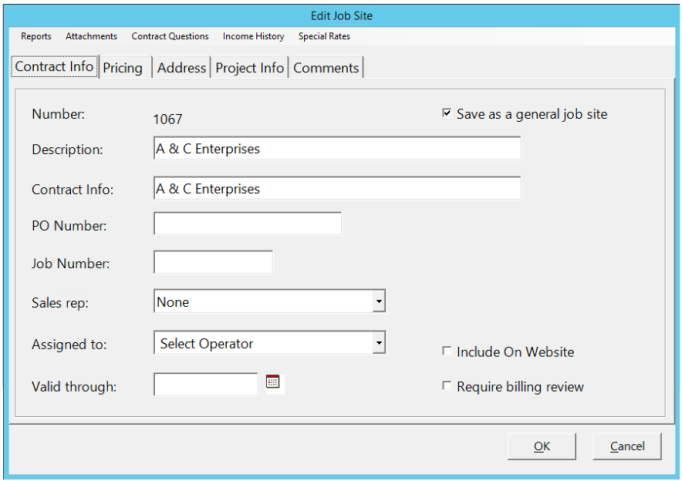
Save as a general job site – With this box checked, the Jobsite will be available to any customer. With this box unchecked, the Job Site will only be available to this customer.
Description– This is the description for the Job Site. It is not put anywhere on a contract.
Contract Info – Whatever is entered in the field will be put into the Contract Info of the contract.
PO Number – Whatever is entered in this field will be put into the PO Number field of the contract.
Job Number – Whatever is entered in this field will be put into the Job Number field of the contract.
Sales Rep– This allows you to set a sales rep to the contract.
Assigned To– This allows you to set an employee to be the default Operator for a particular job site.
Valid through date – This is the date that the Job Site is valid through. Ex. this can be used for a blanket PO that lasts for 1 year
Include on Website - Designates whether or not this job site is uploaded to the company's website.
Require Billing Review - With this box checked, you will be able to view billing prior to sending to the customer..
Canceling a Job Venue: From File Maintenance, Job Venue, select the appropriate venue to be deleted. Enter the previous day in the valid date box.
Pricing
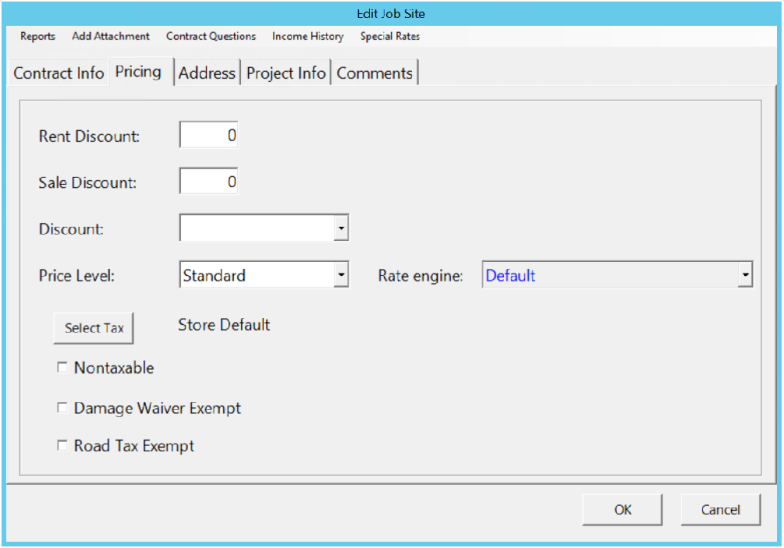
Rent Discount – This allows you to enter a rental discount percentage for the specified venue.
Sale Discount – This is allowing you to enter a sales discount percentage for the specified venue.
Discount Table– This allows you to assign a special discount amount from the drop down to a venue.
Price Level – This allows you to set standard pricing or set level pricing (A, B, C) as the default price level for the venue.
Rate Engine - Allows you to set the type of rate engine (Party, RER, etc) formula to the specific jobsite.
Select tax – This allows you to select tax jurisdiction to the contract.

Nontaxable – Check this box if the contract is to be nontaxable.
Damage Waiver Exempt – Check this box if the contract is to be exempt from damage waiver.
Road Tax Exempt – Check this box if the contract is to be exempt from Item Percentage.
Address
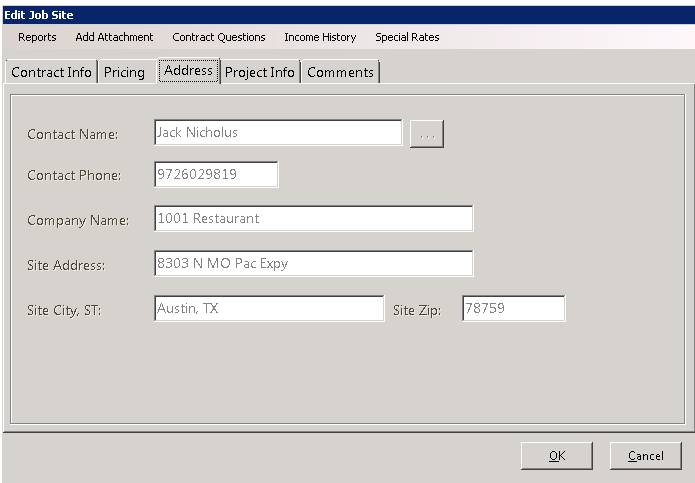
Contact Name – This is the default contact person for the contract.
Contact Phone – This is the default contact phone number.
Company Name – This is the name of the company at the site.
Site Address – This is the address for the job site.
Site State, City – This is the state, city for the job site.
Site Zip – This is the zip code for the job site.
Project Info

Project Type – From the pull down select the type of job such as New Construction, Remodel, Annual Event, etc.
General Contractor – This is the general contractor for the site.
Contractor Phone – This is the phone number for the general contractor.
Project Supervisor – This is the name of the supervisor for the site.
Supervisor Phone – This is the supervisor’s telephone number.
Project Cost – This is the estimated cost of the entire project.
Project Square Feet – This is the number of square feet in the project.
Project Dates – This is the start and ending dates of the project.
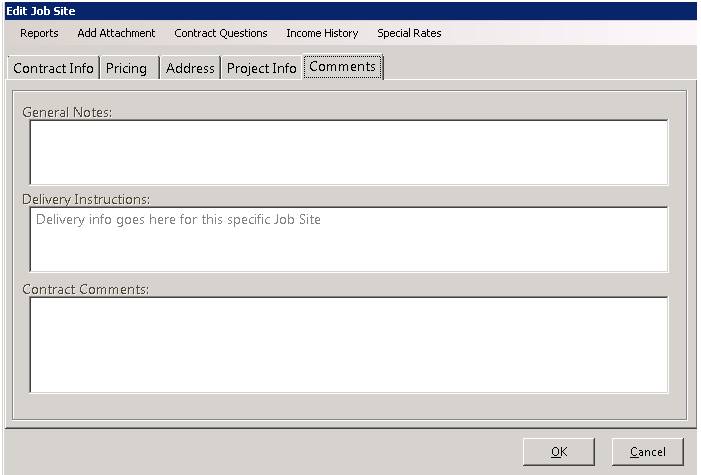
Comments